Practice management
Everyone gets their own desk.
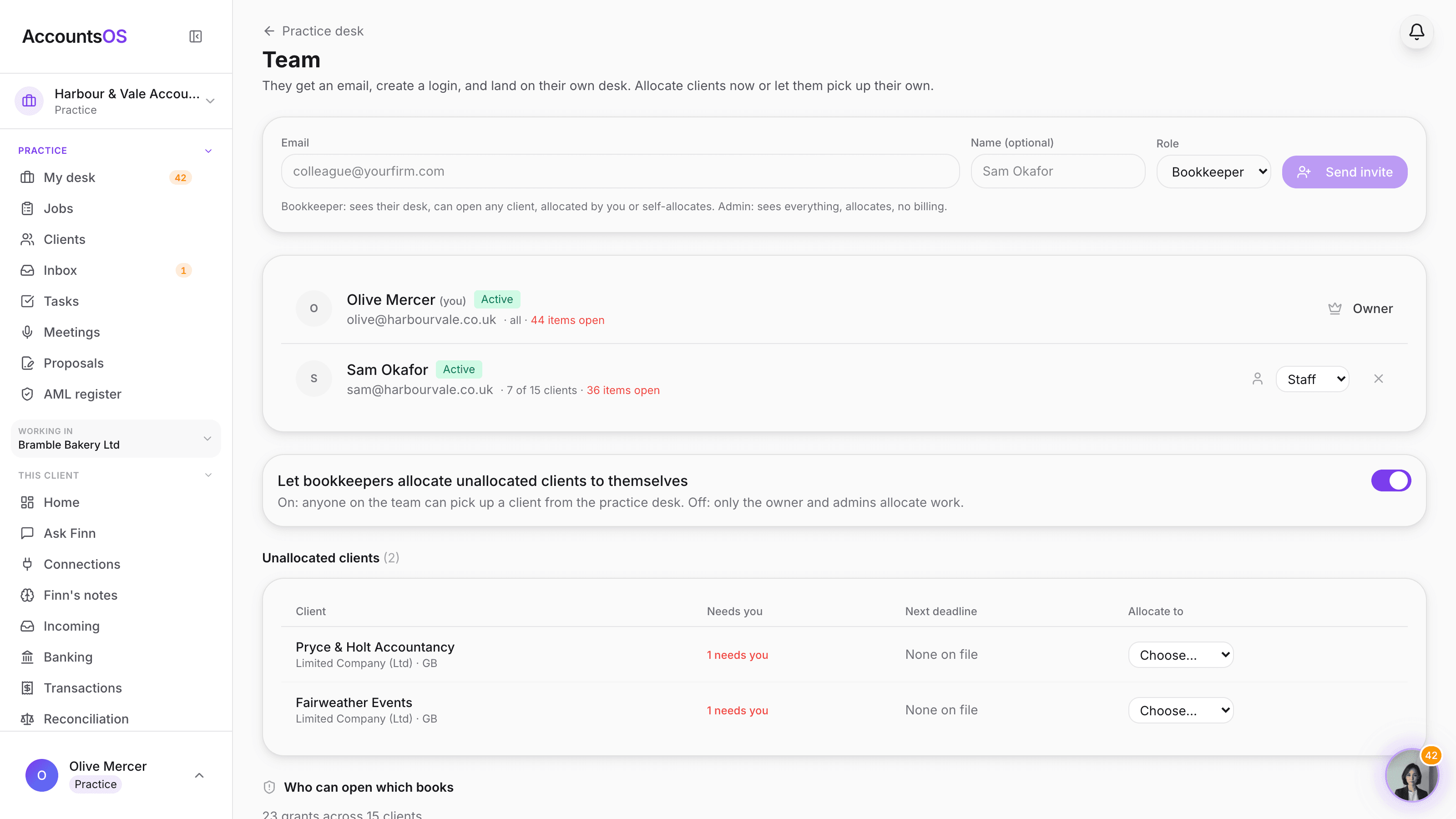
Invite admins and staff. Staff see the clients allocated to them, admins see the whole book, and an access audit shows who can open what.
Optional
AccountsOS · Invite the team, allocate the work
How it works
Team and allocation, step by step
01
Invite the team
Add admins and staff. You pay per live client, not per person.
02
Allocate the clients
Allocate from the desk, or leave clients unallocated so staff can pick them up.
03
Staff work their own desk
A staff desk shows only their clients, with the same queue and counts the owner sees.
04
Audit who can open what
One table lists every grant, with a revoke button on each row.
What you get
- Owner, admin and staff roles
- Self-allocation for unallocated clients
- Access audit with revoke on the row
- Reallocate and the client moves desks at once
- No per-seat fee
Questions
What practices ask
Do we pay extra per team member?
No. Pricing is per live client. Invite as many admins and staff as you need.
What can staff see?
Only the clients allocated to them. Admins see the whole book and manage the team.
Can we see who outside our team has access?
Yes. The audit lists team access, the client's own login and any outside access, with revoke on each row.
What if a staff member leaves?
Remove them and their access to every allocated client ends straight away. Then reallocate their clients.
Switch on just this, or see the whole menu
Open the demo practice with no sign-up, or start your own and add pieces as you go.