Practice management
See the busy month before it lands on someone.
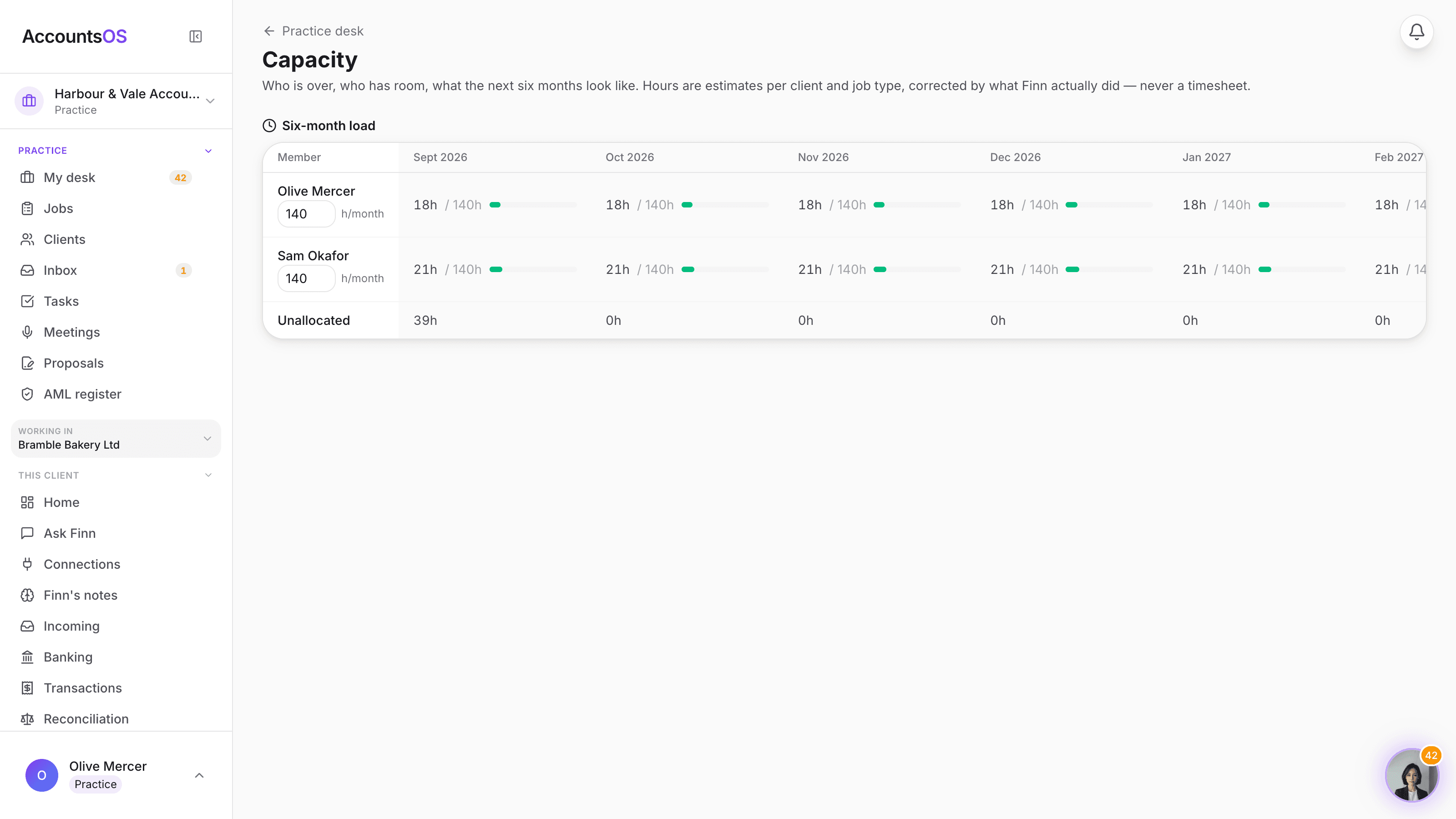
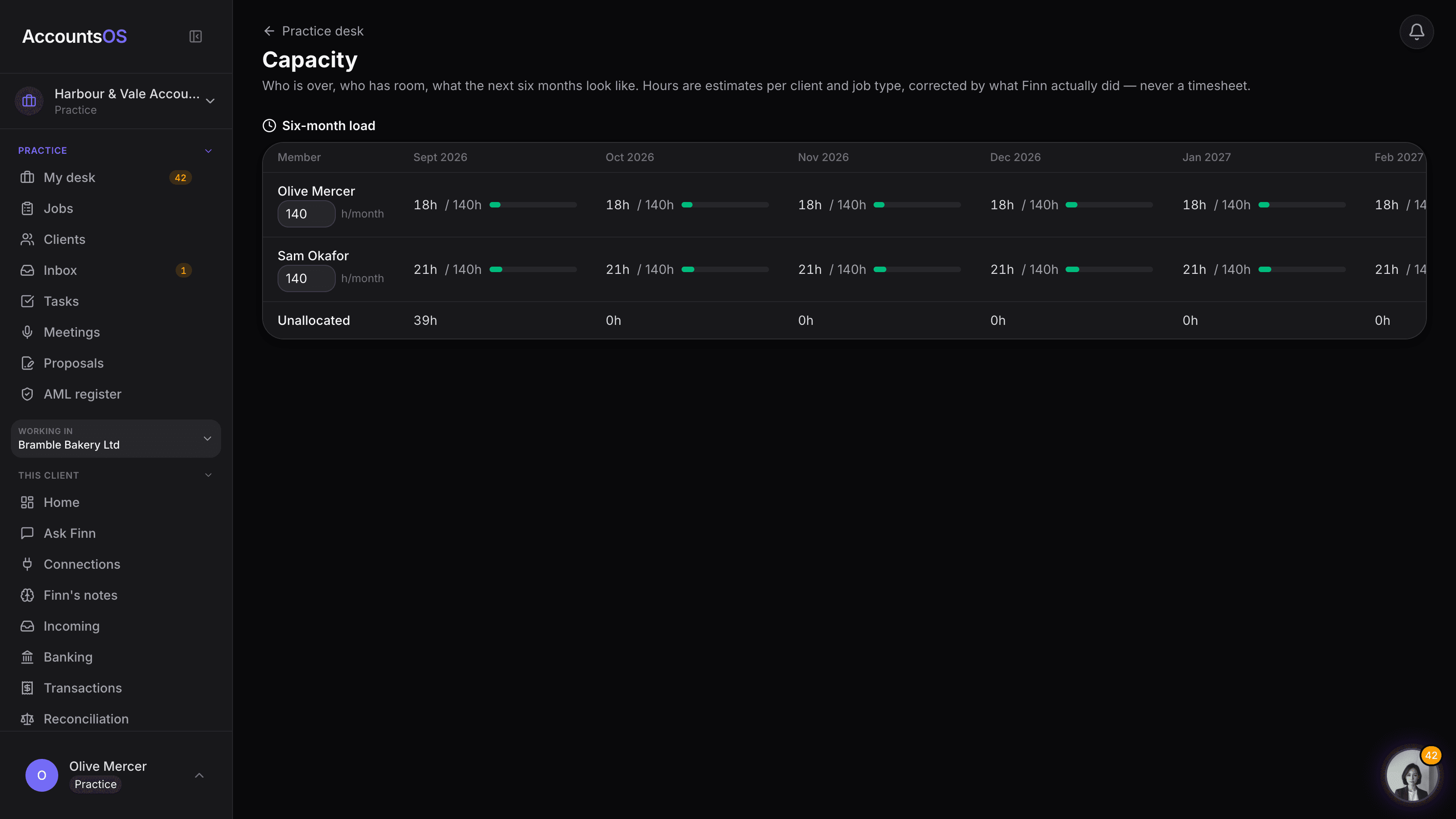
Jobs and bookkeeping hours roll up into a six-month view of who is over and who has room. Finn reads the peaks off your deadlines and suggests who to move work to.
Optional
AccountsOS · Six months, who is over and who has room
How it works
Capacity planning, step by step
01
Every job gets an hours estimate
Each job type has a default figure, refined by what Finn actually does on each client.
02
See six months
Allocated hours against available hours per person, with an Over chip when someone is stretched.
03
Review the suggested move
Finn proposes moving a job from the most stretched person to the one with room. Nothing moves until you apply it.
What you get
- Allocated against available hours, per person, month by month
- Peaks read from year ends, return deadlines and filing seasons
- One click to apply a suggested move
- Each person sets their own available hours
- Unassigned jobs get their own row
Questions
What practices ask
Do staff fill in timesheets?
No. Hours are estimates per client and job type, corrected by what Finn actually did.
How does she know a month will be busy?
From the deadlines already tracked for each client, not a guess from last year.
What if I do not want the suggested move?
Ignore it. Every suggestion waits for you to apply it, and you can allocate by hand from the job board.
Can I set how many hours someone has?
Yes. Edit available hours inline for part-time work, holiday or however your team runs.
Switch on just this, or see the whole menu
Open the demo practice with no sign-up, or start your own and add pieces as you go.