Client portal
See a client's books the way the client sees them.
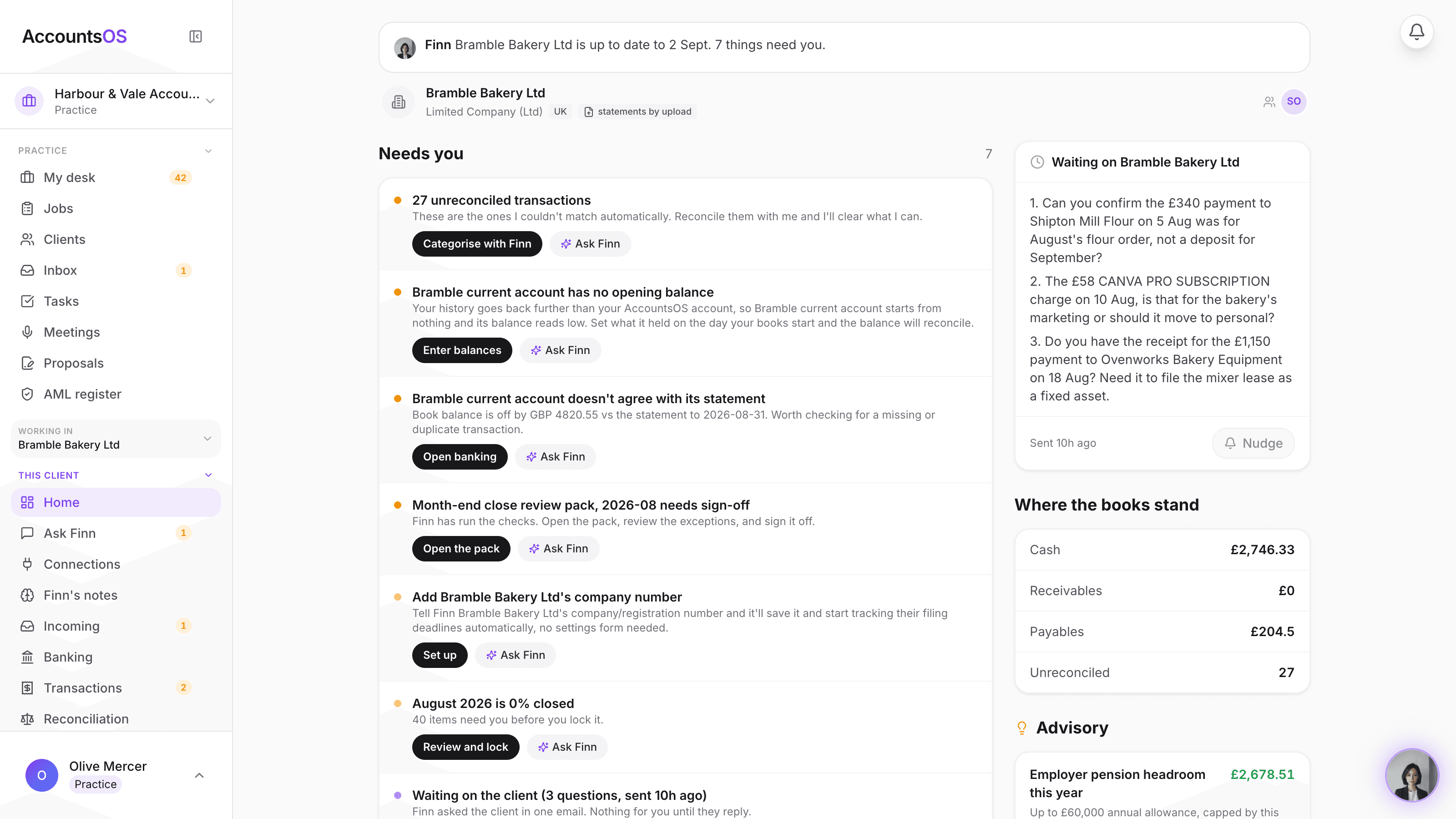
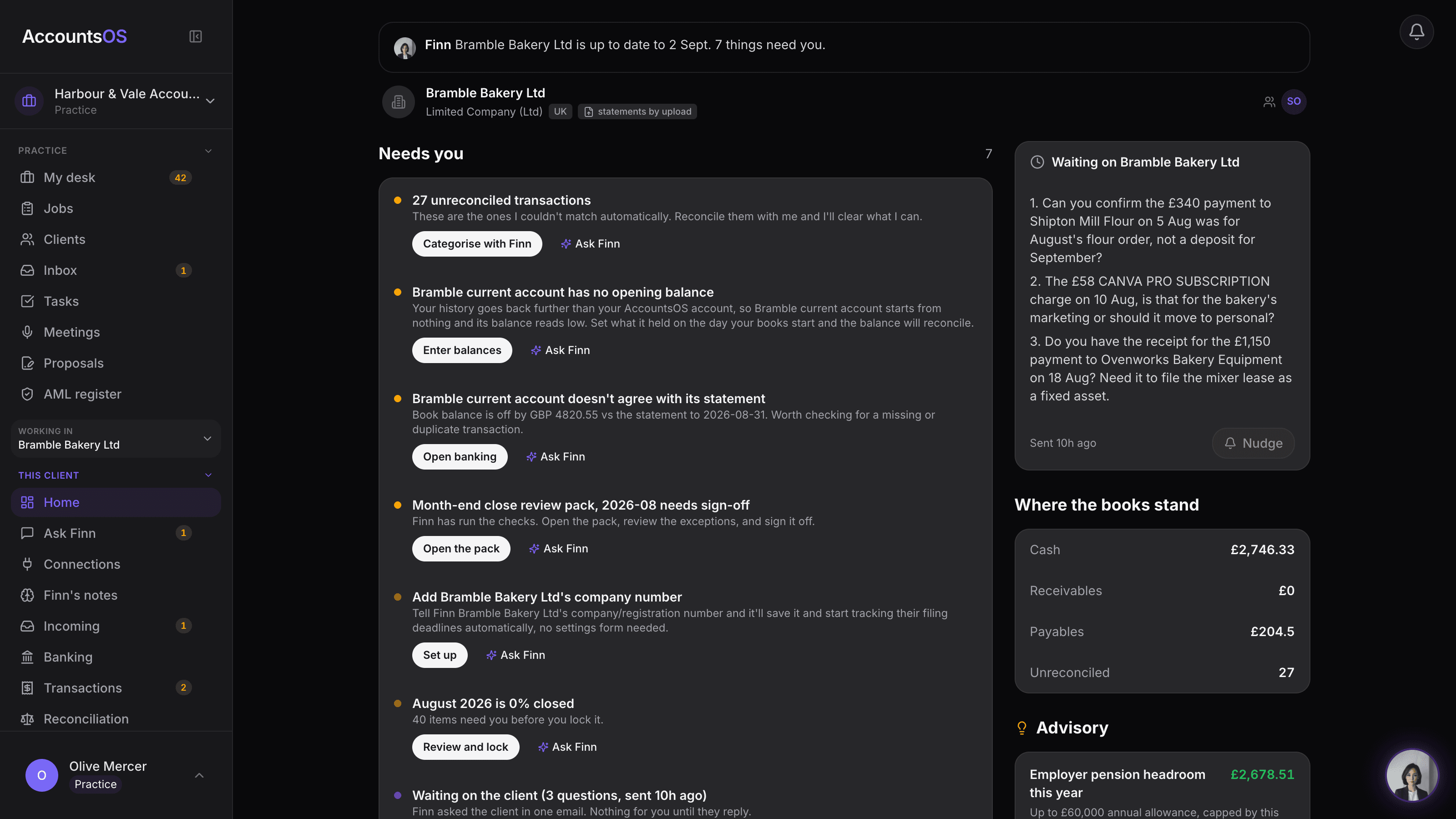
Inside a client, choose View as client and the menu, home and settings change to what their own login sees. No borrowed login, and you can keep working there as yourself.
Optional
AccountsOS · Inside one client's books
How it works
Client mode, step by step
01
Choose View as client
Open a client and pick View as client under Working in. A pill at the bottom reminds you, with an Exit.
02
See their view
The menu, home page and settings change to the client's own view, with your practice's name and logo.
03
Your work stays yours
Changes are recorded as yours, and the audit log marks them as made in client mode.
What you get
- Check exactly what a client can and cannot see
- Answer a client's question from their own screen
- The client is never told you looked
- Works for owners, admins and staff on their allocated clients
Questions
What practices ask
Does it use the client's login?
No. You stay signed in as yourself and see their view.
Can I sign things for the client?
No. Signing a contract or proposal, accepting an invite, changing their login and inviting or removing people stay the client's to do.
Is the client notified?
No. They are never told.
Who can use it?
Owners, admins and staff, for the clients allocated to them.
Switch on just this, or see the whole menu
Open the demo practice with no sign-up, or start your own and add pieces as you go.