Client portal
Your practice's own portal, not a generic login.
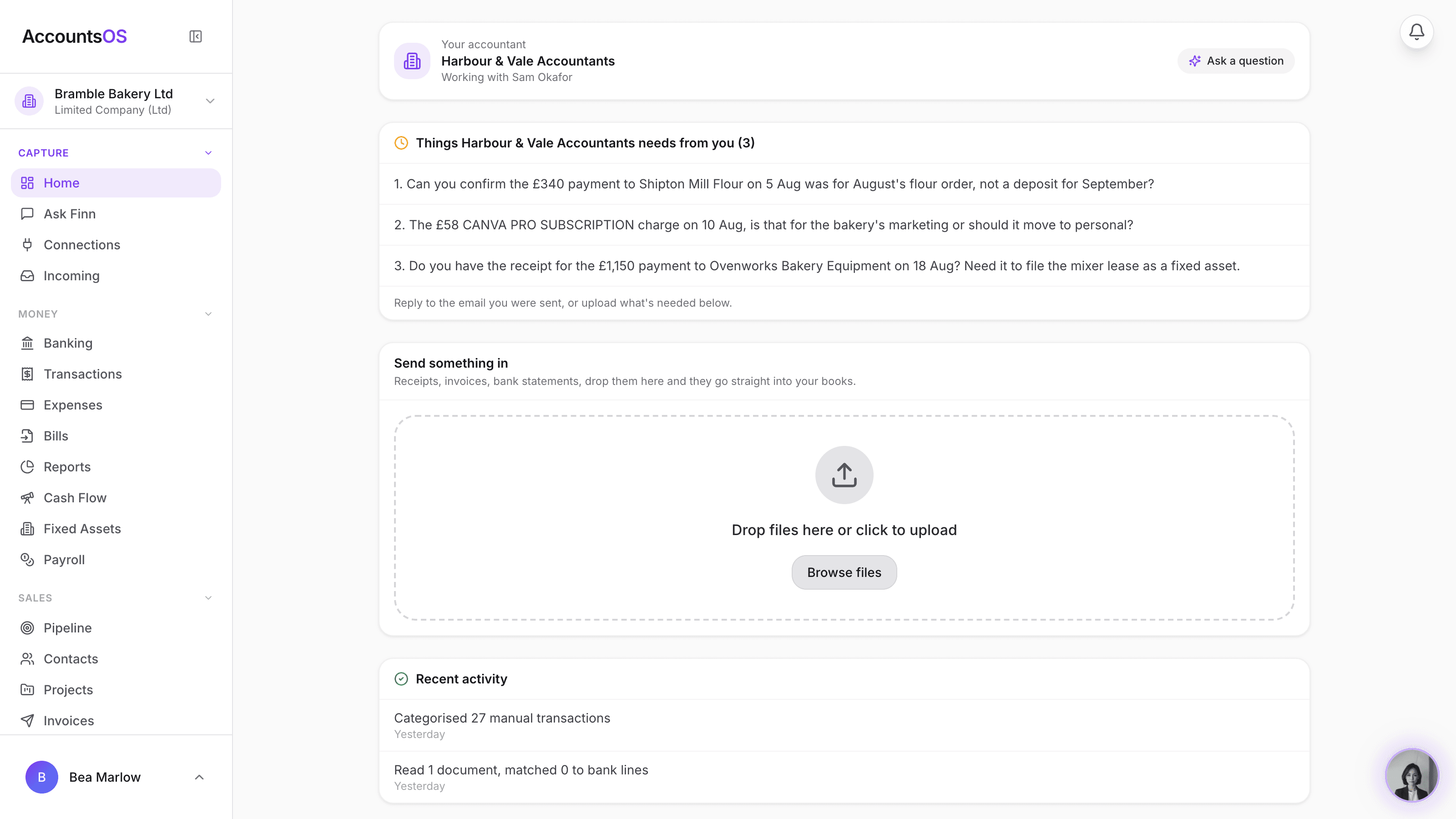
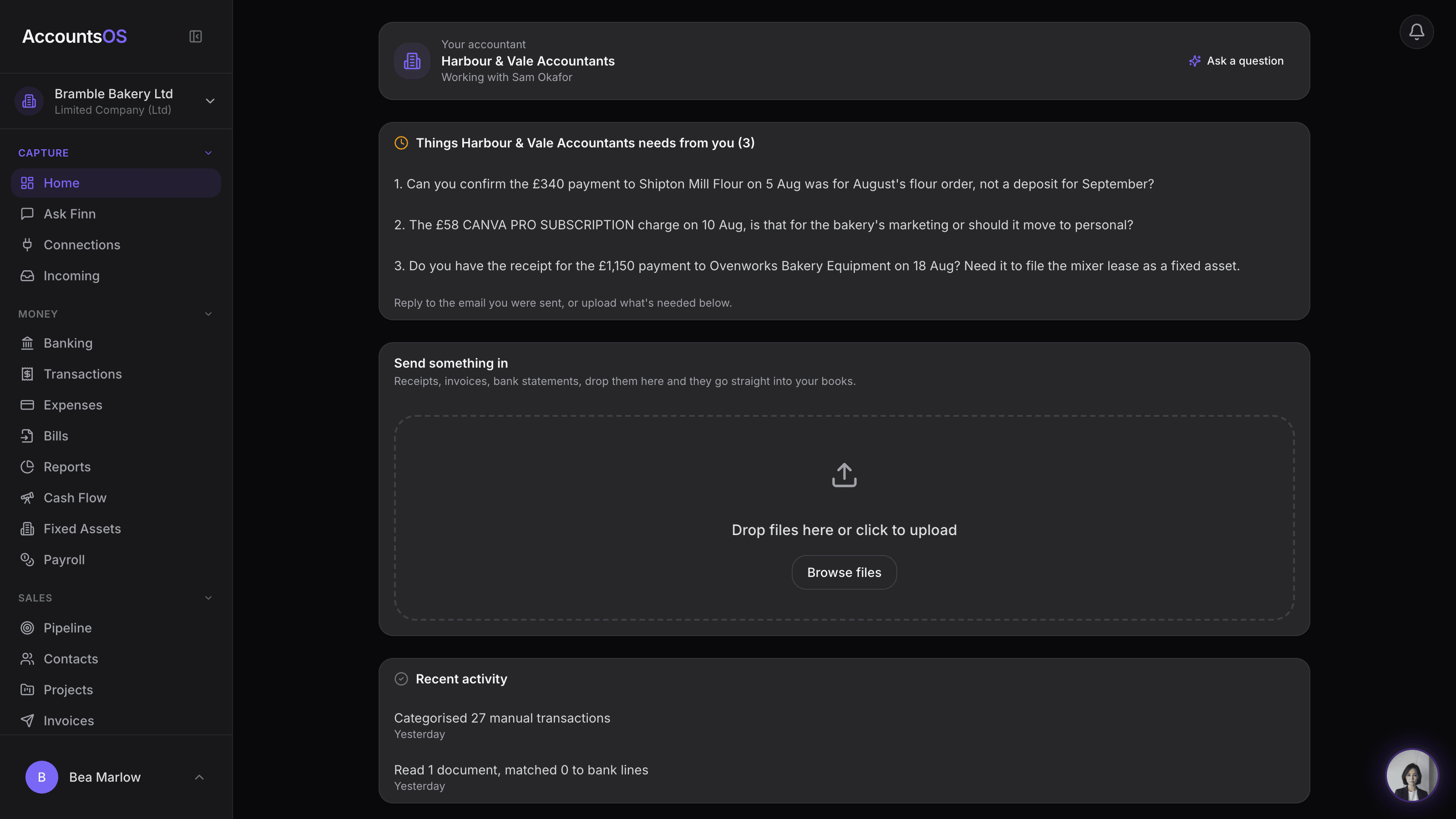
Invite a client from their row and they land on a home with your practice's name and logo, what you are waiting on and an upload drop. Everything still works by email and WhatsApp too.
Optional
AccountsOS · The practice's own framing
How it works
Client portal, step by step
01
Invite from the client row
One action sends the invite from your practice. You can also ask Finn to send it. Re-send it any time without changing their access.
02
An assistant on your team
The client chats with the assistant about their own books. Judgement calls route to your practice.
03
Things you are waiting on
The chase items you see appear on the client's home, with a place to reply or upload.
04
Documents to sign
Engagement letters and proposals awaiting signature sit on the same home.
What you get
- Your name and logo from the first invite email
- The same outstanding items your desk shows, ready for the client to act on
- Clients upload receipts and statements in one place
- Optional for each client, never the only way in
Questions
What practices ask
Do my clients have to use it?
No. Email and WhatsApp still work. The portal is there for clients who want a login.
Will a client see my fees or margin?
No. The home shows only what concerns the client, such as their requests, documents to sign and their own activity.
Does the assistant pose as their accountant?
No. It is introduced as the assistant on your team, and your practice is the one that signs things off.
Can I take access away later?
Yes. Revoke it from the client row at any time. The login is deactivated and nothing is deleted.
Switch on just this, or see the whole menu
Open the demo practice with no sign-up, or start your own and add pieces as you go.