Choose what each client sees and does.
Per client, tick which reports they see and whether they can create invoices, add bills or open the ledger. What you switch off is closed in the menu, by direct link and in the data.
AccountsOS · The practice's own framing
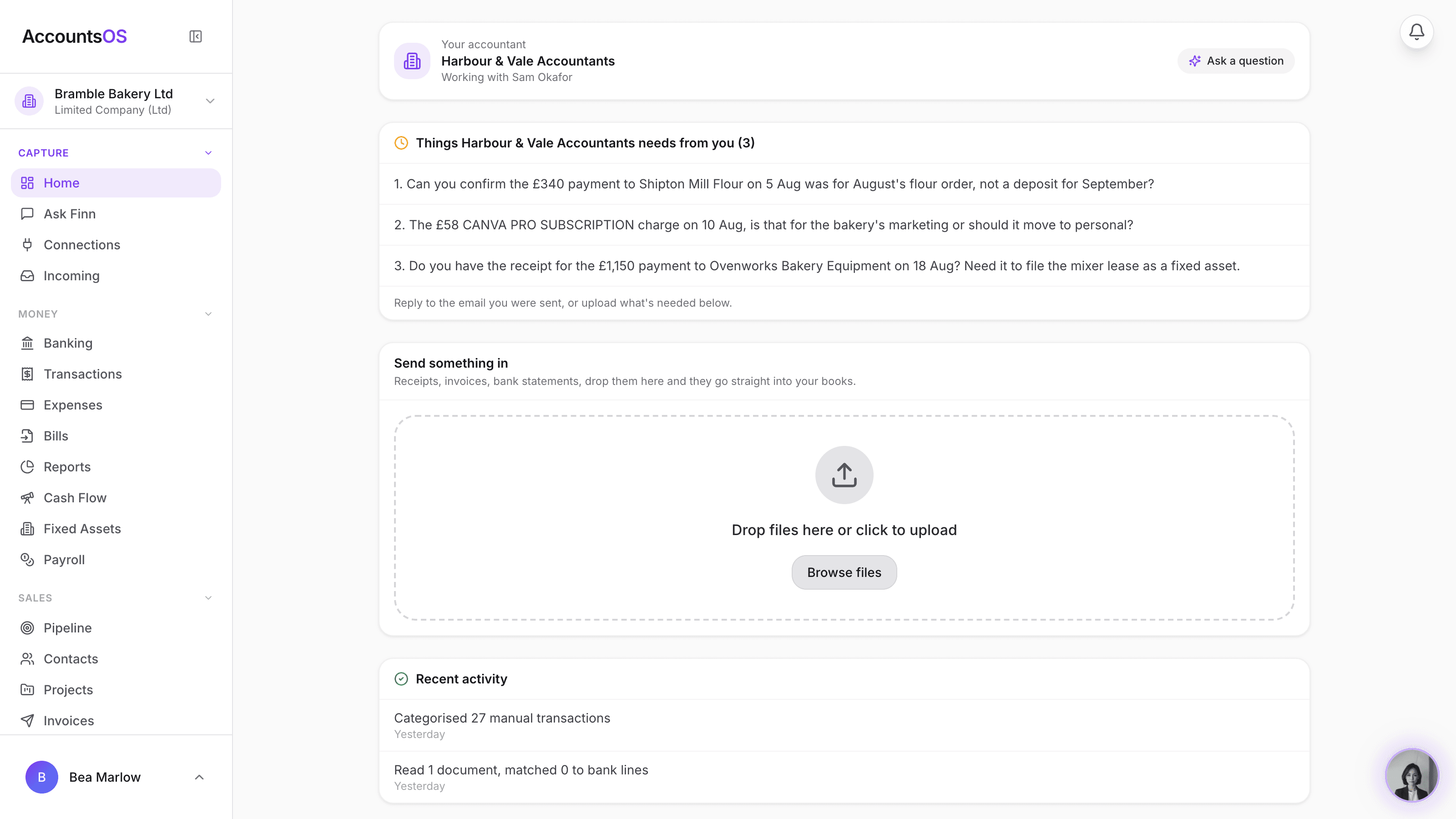
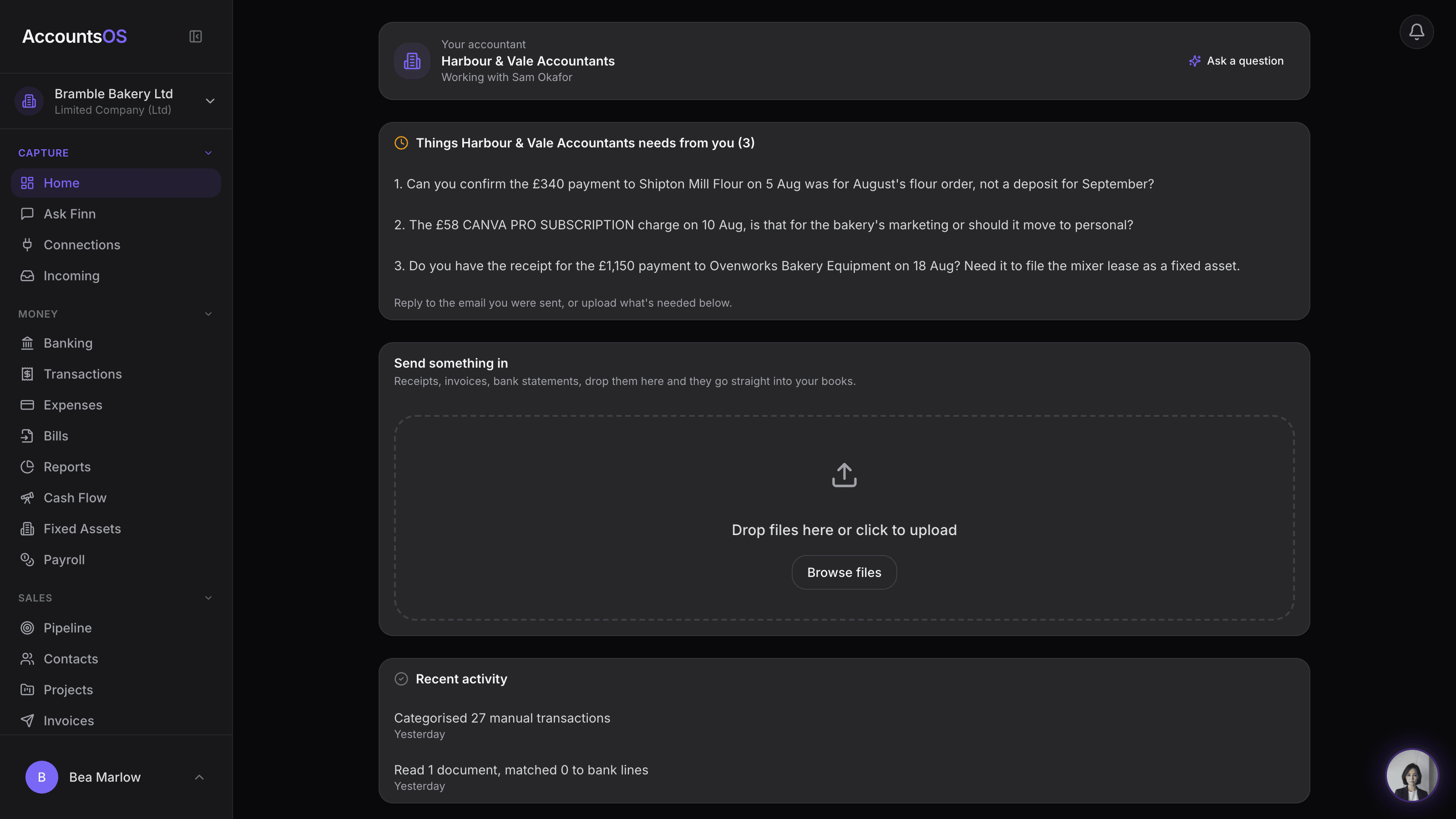
How it works
Portal permissions per client, step by step
Tick what they can use
In Practice settings, Client portal, pick the reports, invoicing, bills and books a client login can reach. Each switch saves on its own.
It is closed everywhere
A page you switched off disappears from the menu and cannot be opened by typing the link. The assistant will not start work the client may not do.
Clients can ask
If a client needs something switched on, they ask in chat and the request reaches your bell, naming the client and what they want.
You decide, they are told
Switch it on or decline. Either way the client is told, so nobody is left waiting.
What you get
- A different level of access for each client
- Where a client may not see something, they cannot add to it either
- Requests from clients land in your bell with a link to their access
- Clients get a clear answer instead of a dead end
Questions
What practices ask
Do I have to set this up for every client?
Does it apply to the client's data too?
What does the client see when something is off?
Can a client change their own access?
Switch on just this, or see the whole menu
Open the demo practice with no sign-up, or start your own and add pieces as you go.