Always-on prep across the book. Then leave Xero in batches.
Switch your practice from Xero without a rip-and-replace weekend
Finn categorises, reconciles and batch-prepares VAT and year-end across your client book continuously. Your team works the exceptions queue and signs. Migration is the how, not the what: connect Xero (read only), review the import plan, move groups when the figures agree. Where Xero still wins: inventory, deep CIS, and the app ecosystem.
AccountsOS · Connect Xero once, pick the clients
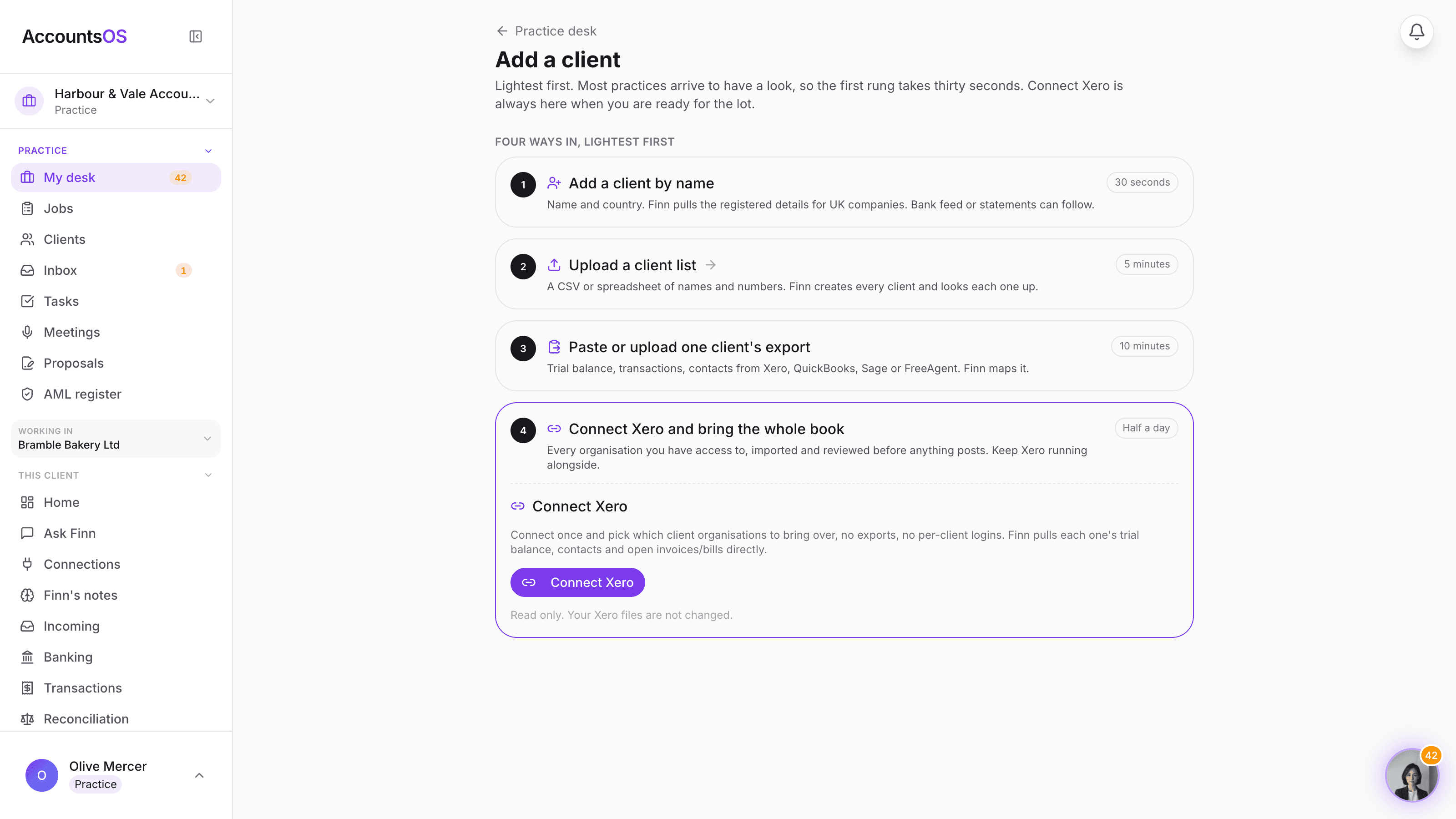
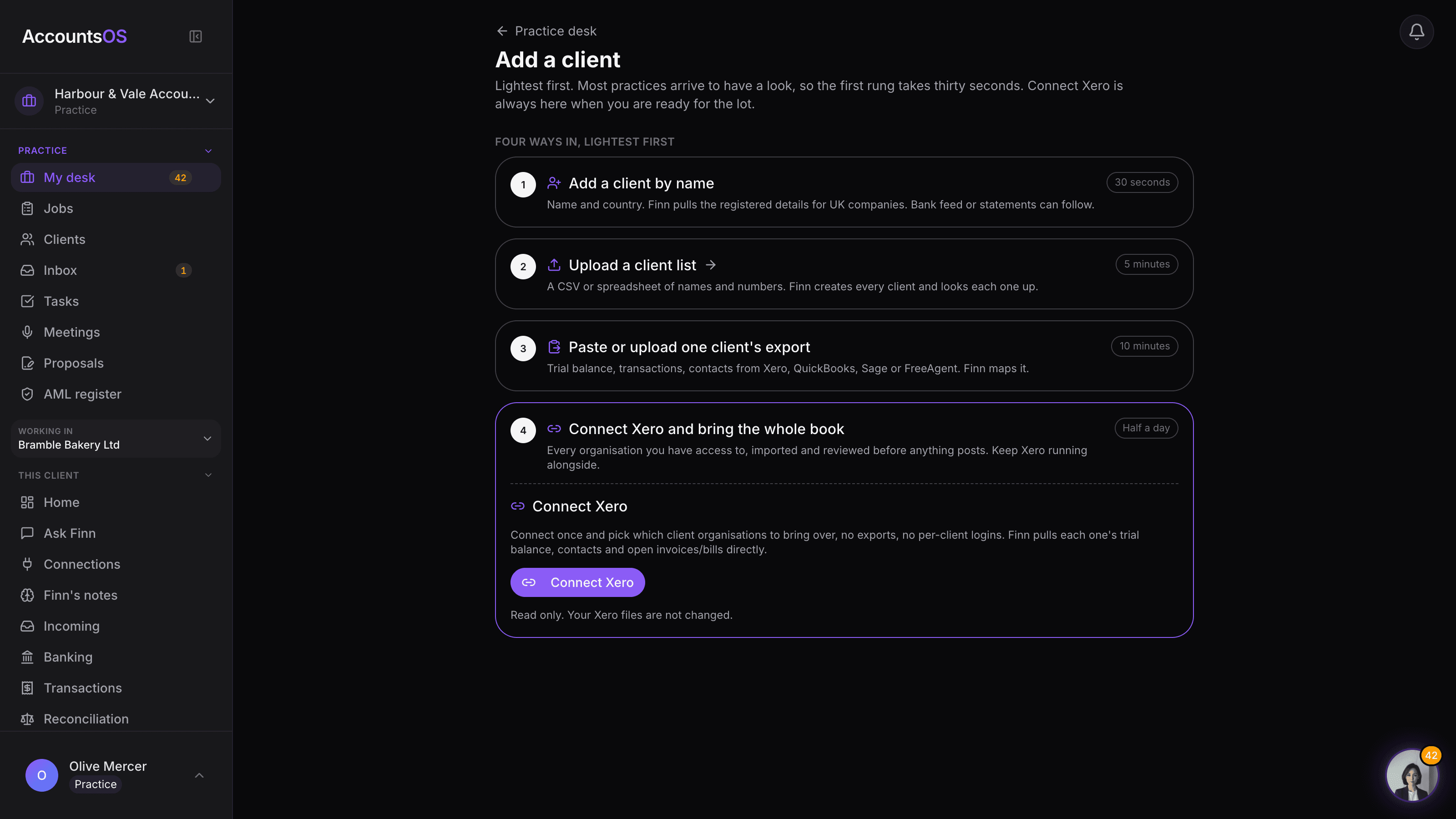
The Xero client picker in AccountsOS, shown with demo practice data.
What the import looks like
Connect Xero once and select the organisations to migrate. Finn prepares the import plan (trial balance, chart of accounts, contacts, unpaid invoices and bills). Your team reviews before anything posts. The Xero connection is read only, so your source files stay untouched.
AccountsOS · Connect Xero once, pick the clients
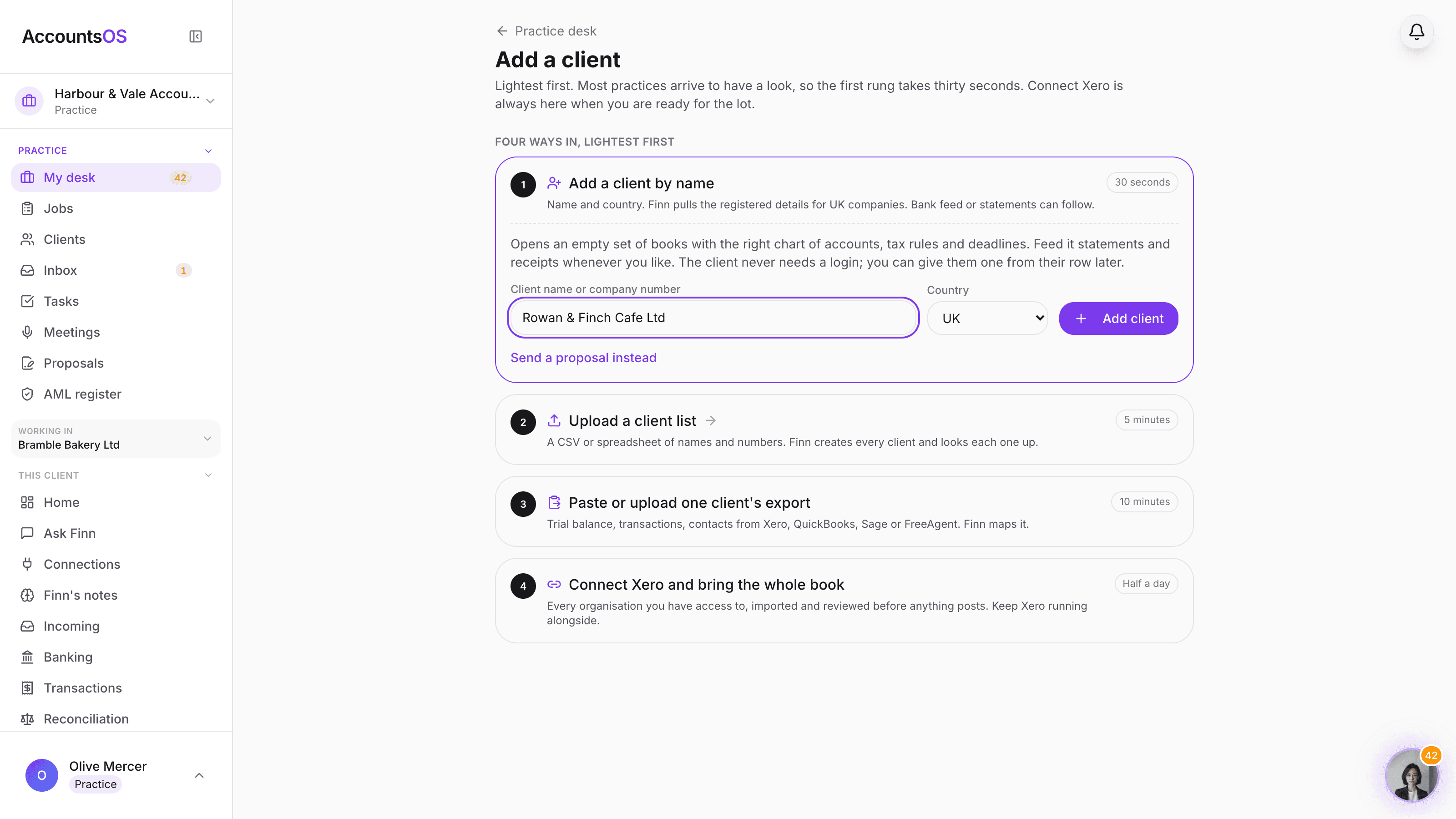
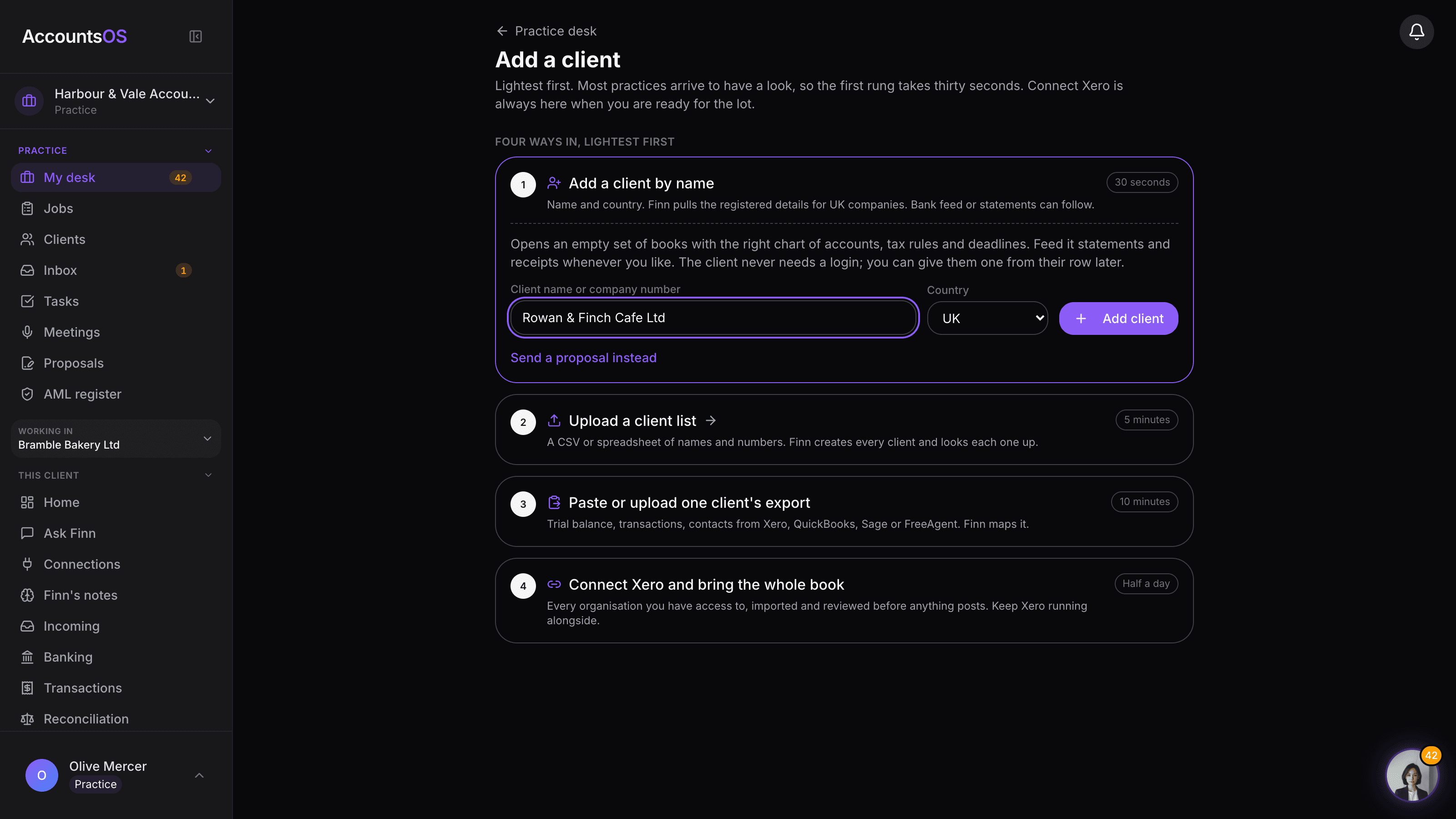
Connect Xero once, pick the clients
Connect your Xero login, tick the organisations to bring over, and review what Finn will post before anything lands. Read only. Your Xero files are not changed.
Screenshot tours use a demo practice. Use your pilot to verify your own results.
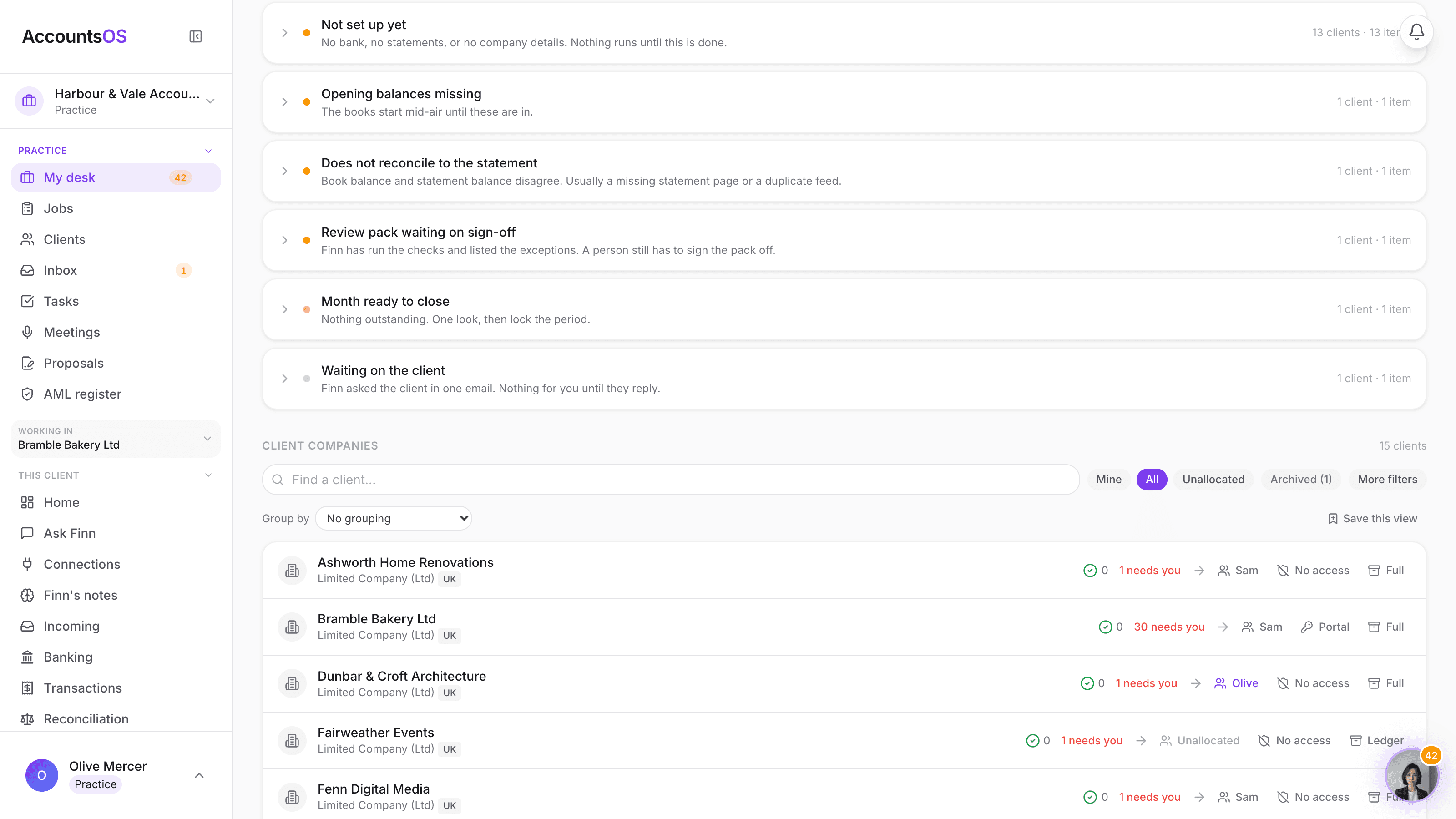
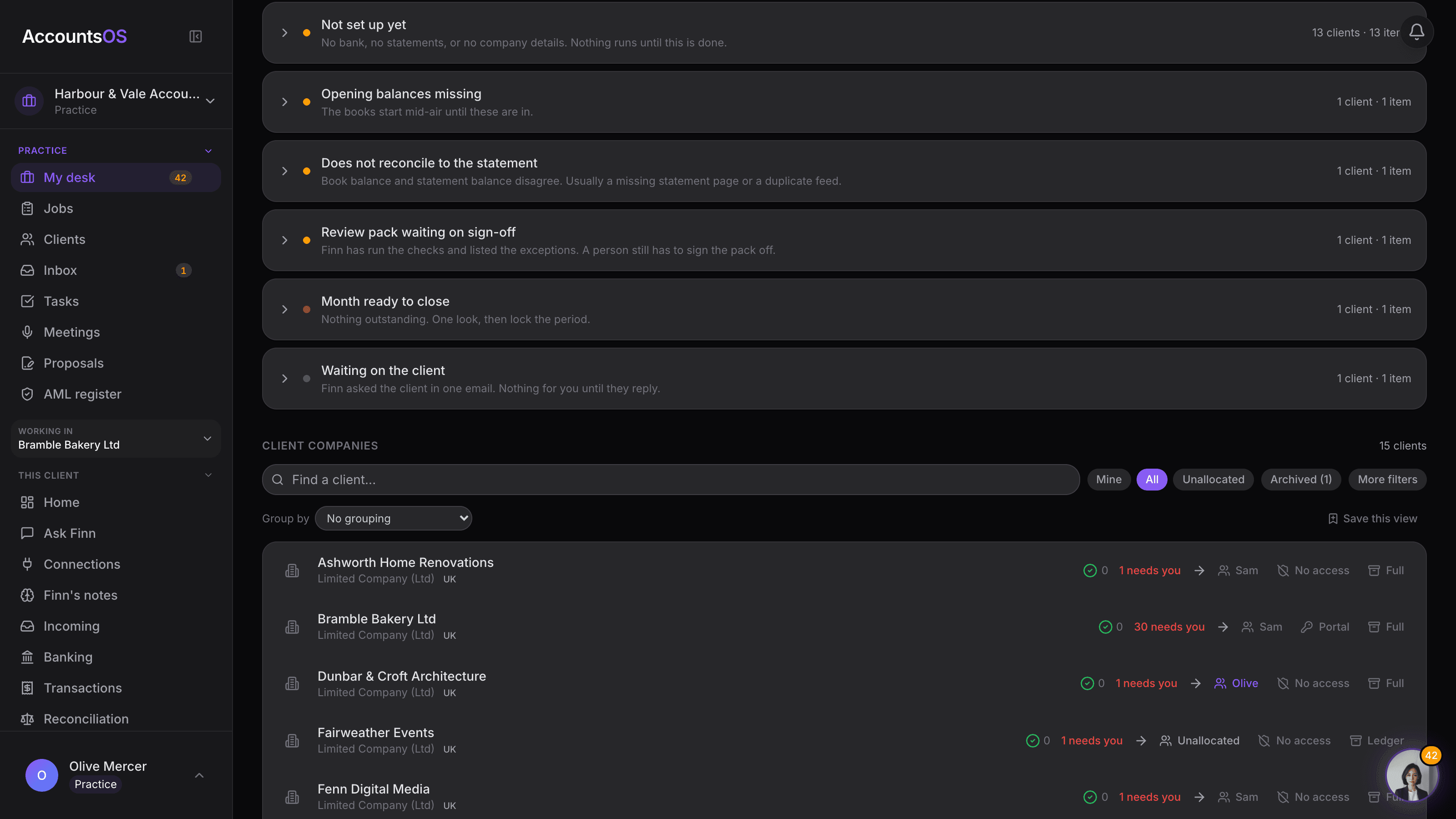
The clients you bring over land on the practice desk with their scope and allocation already set, alongside every client already on the book.
AccountsOS · Every client, one row
We’ll help you bring the book across
Plan the move around your practice. We’ll help with setup and migration questions, while Finn prepares the imports for your team to review. Move in the batches that suit your workload.
Plan the move
Agree the scope, conversion dates and client groups with your team. We can help with setup and migration questions. Connect Xero or supply exports from your existing system.
Review the import plan
Review the proposed account mapping, conversion balances, contacts and unpaid invoices and bills. Resolve missing data or unexpected totals before you apply the import.
Scale the migration
Bring your client groups across in planned batches. Your team reviews each import, with help available as you get the practice up and running.
Three checks before you move the next client
Agree the pass criteria with your team before importing. A successful pilot means the figures agree and the daily work fits your practice.
Plan separately for history and connections
The Xero connection reads conversion balances, accounts, contacts and unpaid invoices and bills. It does not copy receipt attachments, filed VAT returns, payroll history or bank-feed connections. Keep your source records and agree any additional exports or setup before switching.
The reason to switch is bigger than price
The honest reason to switch is not just Xero's per-org pricing. It is that Finn does the production work continuously (categorisation, reconciliation, batch prep for VAT and year-end) so your team works exceptions, not line items. That changes the economics of serving each client: fewer hours chasing receipts, less repetitive review, more capacity for advisory and growth.
Practice pricing starts at £12 + VAT per live client per month, with no minimum and volume discounts as your book grows. Compare that against Xero's per-org fees plus add-ons, alongside the time your team spends on the work. Calculate the cost for your practice.
Reduce the software tax per client
Compare the total cost of the tools your team uses for each client. AccountsOS practice pricing is built around live clients, volume discounts and one bill to the practice.
Cut the admin time, not just the licence cost
Finn categorises, reconciles, reads documents, flags gaps and prepares month-end, so staff review exceptions instead of touching every line.
Modernise without losing control
Use AccountsOS internally, invite selected clients, or explore API/MCP/own-brand workflows. The practice keeps the relationship and chooses the client experience.
When Xero still wins
If your practice specialises in inventory-heavy businesses, deep CIS workflows, or relies on niche Xero apps, Xero remains the safer choice today. AccountsOS covers standard Ltd bookkeeping (ledger, bank feeds, invoicing, VAT, payroll) but Xero's decades-old ecosystem goes deeper in those specialist areas.
Your rollout
A move that fits your practice
- Agree your client groups, conversion dates and setup needs.
- Compare conversion balances, unpaid invoices and bills.
- Let staff test Finn before the whole team changes workflow.
- Move more clients only once the practice is comfortable.
Questions about switching from Xero
Can I try AccountsOS with one Xero client?
Yes. Create a practice account, connect Xero and select one organisation, or supply that client's export. Review the import plan, check the balances and run a real period before moving more clients. There is no practice monthly minimum.
What does the Xero connection bring across?
The connection reads the organisation details, trial balance at the conversion date, chart of accounts, contacts and authorised unpaid sales invoices and bills. Finn uses this data to prepare an import plan for your review. Check the proposed mapping and totals before applying it.
Does it copy my entire Xero history?
No. The connected migration brings across conversion data, not a complete historical copy. Receipt attachments, filed VAT returns, payroll history and bank-feed connections are not included in this pull. Keep your source records and agree any additional exports or setup with the team before switching.
Do I need to cancel Xero before the pilot?
No. Keep Xero available while you check the import and test your workflow. The migration reads your Xero data without changing it. Decide where live work will be recorded during the pilot so the two sets of books do not drift apart.
Can I migrate the rest of my practice in batches?
Yes. Once the first client passes your checks, bring over more selected organisations in batches. The Xero connection currently accepts up to 10 organisations per batch. Review each client's result before moving on.
Do my clients need to log in?
No. Your team can run the books internally. You can invite selected clients for uploads and questions when that suits your service. Your practice keeps the client relationship and reviews the work.
Let’s bring your practice across
Tell us how many clients you manage, what you use today and what you want to achieve. We’ll help plan the migration and setup around your practice.
Plan your practice migration
Talk through your client book, setup and migration with the team.